Quick Start
Requirements for STM32 TSP 1.7.1
The PLECS STM32 Target Support Package currently supports the STM32G4xx and STM32F3xx single-CPU families.
In order to use the PLECS STM32 Target Support Package you will need:
a host computer (with Windows or macOS)
PLECS Blockset or Standalone 5.0.6 or newer
PLECS Coder
If you have not done so yet, please download and install the latest PLECS release on your host computer.
Installing the Target Support Package
Download the appropriate ZIP archive or disk image from the Plexim website,
extract it and move the stm32 folder to the PLECS Coder target support packages path e.g. to HOME/Documents/PLECS/CoderTargets.
In PLECS, choose Preferences… from the File drop-down menu (PLECS menu on macOS) to open the PLECS Preferences dialog.
Navigate to the Coder tab and click on the Change button to select the HOME/Documents/PLECS/CoderTargets folder.
The targets included as part of the STM32 Target Support Package should now be listed under Installed targets.
You will also see these targets available in the Coder > Coder Options… window in the drop-down menu on the Target tab.
Another folder labeled projects is included in the ZIP archive.
The contents of this folder is required only when the PLECS Coder is configured to generate code into STM32CubeIDE projects.
The projects/stm32xx.zip files contain Cube IDE projects that are used in conjunction with the embedded code generated from PLECS.
A set of basic demos is also included with the STM32 Target Support Package.
Build and Deploy Generated Code
There are two primary methods for building and deploying generated embedded code onto a STM32 MCU.
Build and program the MCU from PLECS You can directly program the target device from the PLECS application. This approach does not require any external tools, although, optionally, the Segger J-Link package can be used in this workflow. Clicking Build in the Coder > Coder Options… window generates model and supporting hardware configuration code, builds the application using the ARM GCC tools, and then flashes the target via Open OCD (or J-Link).
Build and program the MCU from the STM32CubeIDE In this approach the PLECS Coder generates code for the specified target into a template Cube IDE project. The Cube IDE is then used to build the project and flash the target device. The advantage of this method is that the generated code can easily be inspected. Further, the developer has access to debugging tools.
If the required software is installed on your PC you can easily switch between the two methods by checking or unchecking the Generate code only parameter in the Target tab of the Coder > Coder Options… window.
Program the MCU from PLECS
PLECS can automatically program the target MCU after it finishes generating and building code. Programming occurs over the GNU debug protocol and requires a GDB server.
Two options exist:
Open OCD The STM32 Target Support Package includes the Open On-Chip Debugger package and GDB server, supporting the ST-LINK debug link out of the box (no external tools needed).
Segger J-Link Segger debug probes offer superior throughput and are also supported by the STM32 Target Support Package – see below on how to install the Segger tools.
Note that the debug link can also be used in PLECS External Mode to communicate with the target while it is executing the generated code. It is in External Mode that the high throughput of J-Link is most noticeable.
Configuring Segger J-Link Tools
The Segger J-Link tools must be downloaded and installed separately.
To configure the PLECS Coder to use the Segger tools, select Preferences… from the File drop-down menu (PLECS menu on macOS) to open the PLECS Preferences dialog.
Click the Coder tab to see the installed targets.
Click the  icon in the Family column next to the STM32 entry and enter the path to the J-Link installation (e.g.
 /Applications/SEGGER/JLink).
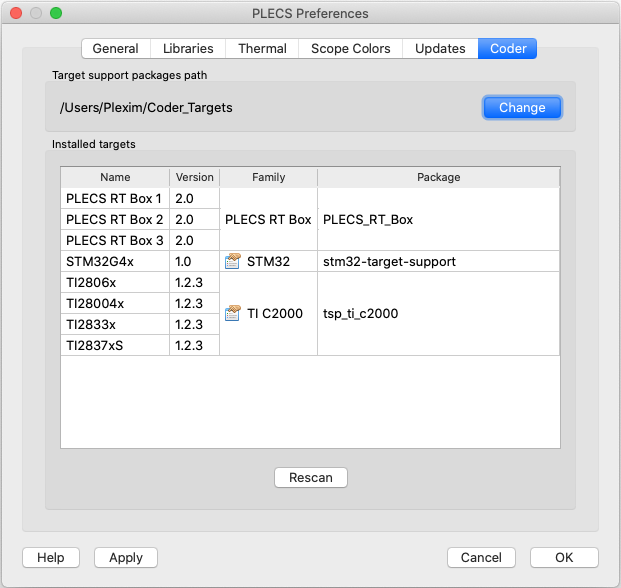
Fig. 1 Configuring the target support package and external tool paths
Deploy code to STM32 target from PLECS
To deploy code to a STM32 target from PLECS, navigate to the Target tab of the Coder > Coder Options… window, and select the target MCU. Uncheck the Generate code only parameter, then choose the desired Programming interface from the dropdown menu. The default programming interface is Open OCD.
Program the MCU from STM32CubeIDE
Configure STM32CubeIDE
Download and install the latest version of STM32CubeIDE from the STM website.
After installing STM32CubeIDE, import the appropriate template project from the STM32 Target Support Package. Open STM32CubeIDE and click the File drop-down menu and then select Import…. From General > Existing Projects into Workspace, choose the zip archive in the projects folder that corresponds to the desired target. You will notice a new project created in your workspace.
Deploy code from STM32CubeIDE
Return to the PLECS application, navigate to the Coder > Coder Options… window and select the Target tab. Check the Generate code only parameter checkbox. Enter the location of the ${workspace_loc}/cube_g4xx/cg, ${workspace_loc}/cube_f3xx/cg or ${workspace_loc}/cube_h7xx_single_cpu_targets/cg folder from the STM32CubeIDE project into the STM32CubeIDE project directory field and click Build. Note that ${workspace_loc} refers to the location of the imported project in the STM32CubeIDE workspace. You will notice several new files created in the ${workspace_loc}/cube_g4xx/cg, ${workspace_loc}/cube_f3xx/cg or ${workspace_loc}/cube_h7xx_single_cpu_targets/cg directory. Then, proceed to build and debug your project as you would a normal STM32CubeIDE project. The project will not compile without first generating code from PLECS.
Note that it is necessary to manually delete the contents of the ${workspace_loc}/cube_g4xx/cg, ${workspace_loc}/cube_f3xx/cg or ${workspace_loc}/cube_h7xx_single_cpu_targets/cg folder when generating code for a new subsystem of a different name, as the STM32CubeIDE builder will build all files in this folder, including old files.
Start the External Mode
Once the generated code is running on the embedded target, the user can enter the External Mode to update Scopes in the PLECS application with real-time waveforms and change certain simulation parameters.
External mode can be configured to run over JTAG or Serial. This choice must be configured from the Target > External Mode tab of the Coder > Coder Options… window prior to building the project.
To establish a communication link over JTAG with your target, follow the instructions provided below:
Open the External Mode tab of the Coder > Coder Options… window and then select the
 icon next to the Target device field.
Select Serial over GDB, configure the device name to 127.0.0.1 and then click the OK button to proceed.
Click the Connect button and if the connection is successful you will see the trigger controls activate.
Set the Number of samples parameter to e.g. \(1000\) and click on the Activate autotriggering button.
To establish a communication link over Serial with your target, first configure the proper USART channels from the Target > External Mode tab of the Coder > Coder Options… window. Then, Scan for the appropriate Target device and proceed to Connect to the target as described in the instructions above.
You will now see real-time data from the MCU in the PLECS Scopes. You can synchronize the data capture to a specific trigger event. To do so, change the Trigger channel selection from Off to the desired signal. The Scope will now show a small square indicating the trigger level and delay. If the level or delay are outside the current axes limits, a small triangle will be shown instead. Drag the trigger icon to change the trigger level; drag it with the left mouse-button pressed to change the trigger delay. Both parameters can also be set in the External Mode dialog.
Note
While a trigger channel is active, the Scope signals are only updated when a trigger event is detected.
While the PLECS model is connected via the External Mode, the model is locked against modifications. To disconnect from the MCU and other External Mode connections, click on the Disconnect button or close the Coder Options dialog.
Parameter Inlining
Certain values on the target device can be changed in real-time, when connected to the target device via the External Mode, if the component is added to the “Exceptions” list found in the Parameter Inlining tab of the Coder > Coder Options… window, prior to building the model. Changes in the parameters will be reflected in the Scope traces once they take effect.
Connecting the external mode to several targets
External mode can be connected to several targets at the same time. When using external mode over Serial each target can be identified by the Device names. When the External mode is established via JTAG a unique GDB port has to be opened for each connection. This can be achieved by following the steps below:
Open the External Mode tab of the Coder > Coder Options… window and then select the
icon next to the Target device field.Select Serial over GDB, configure the device name to 127.0.0.1:port_number and then click the OK button to proceed. The
port_numbermust be an integer number between \(1024\) and \(65535\). The port number is separated to the IP address with a colon character (:). For each connection a different port number has to be configured.Apply the changes by clicking on Accept on the lower left side of the Coder Options dialog.
Click the Connect button and if the connection is successful, you will see the trigger controls activate.
When working with multiple targets at the same time it is recommended to specify serial numbers to identify the target devices.