Simple Model
Overview
This demo features a simple model that shows how to use STM32 microcontrollers (MCUs) with the PLECS Coder and the STM32 Target Support Package.
The model is split into four distinct subsystems called “G431RB”, “G474RE”, “G491RE”, “F303RE”, and “F334R8”. Each subsystem can be independently deployed to the corresponding STM32 hardware. The following sections provide a brief description of the model and instructions on how to simulate it.
Model
The top level schematic contains four separate subsystems, as shown in Fig. 1. The subsystem labeled “G431RB” is configured for the Nucleo G431RB MCU [1], the subsystem labeled “G474RE” is configured for the Nucleo G474RE MCU [2], the subsystem labeled “G491RE” is configured for the Nucleo G491RE MCU [3], the subsystem labeled “F303RE” is configured for the Nucleo F303RE MCU [4], and the subsystem labeled “F334R8” is configured for the Nucleo F3348R8 MCU [5].
Each subsystem is enabled for code generation, as indicated by the thick outer border of the subsystem blocks. This configuration is necessary to generate the model code for a subsystem via the PLECS Coder. This setting is configured by right-clicking the subsystem, opening Edit > Subsystem > Execution Settings… menu, and then selecting the Enable code generation option.
The generated code runs at a base sample time on the MCU. This sample time also defines how the continuous states of the model equations are discretized. The sample time is configured in by the Discretization step size setting in the Scheduling tab of the Coder > Coder Options… window. In this model, the discretization step size of each of the subsystems is set to \(100\,\mu\mathrm{s}\).
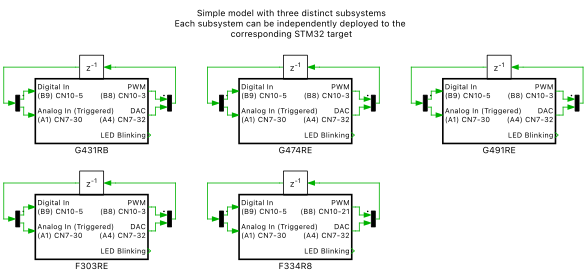
Fig. 1 Top level schematic of the model with four subsystems
Each subsystem includes a simple model to blink an LED on the STM32 Nucleo board using a do_stm32 from the STM32 Target component library. The model also includes two Sine Wave Generators that are measured with a PLECS Scope, as shown in Fig. 2.
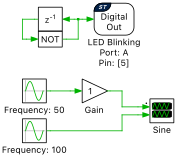
Fig. 2 Circuit to blink an LED and generate sine waveforms
The MCUs pulse-width modulator (PWM) peripheral is configured by the pwm_stm32, as shown in Fig. 3. Duty cycle is provided as an input to this block. The TIM unit, Carrier type, Carrier frequency and Blanking time parameters can be configured from the Main tab of the PWM block parameters window. The PWM block can generate a single or complementary PWM pair on one or more PWM resources.
By externally connecting the PWM output to a digital input via a jumper wire, the generated PWM signals can then be sensed and used in the model environment. The di_stm32 is used for this purpose.
Analog signals are sensed by configuring the analog-to-digital (ADC) peripheral of the MCU. Similarly, analog signals are generated by using the digital-to-analog (DAC) peripheral device.
In this model a dac_stm32 generates an analog signal and an ADC block then senses the signal, using an external jumper wire to connect the appropriate pins. Optionally, scaling and offset factors can be configured for each channel via the parameter window of the ADC and DAC blocks.
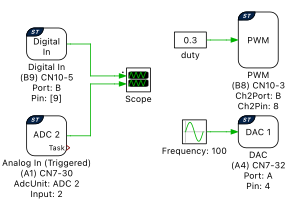
Fig. 3 Circuit to generate PWM and analog waveforms
Simulation
Each subsystem can be directly converted into target specific code for the corresponding STM32 hardware.
Flash the MCU
Follow the instructions below to upload the subsystems to an STM32 MCU.
Connect the desired MCU to the host computer through a USB cable.
Open the Coder > Coder Options… window, and from the System menu on the left-hand side, select the MCU of interest.
Next, from the Target tab, select the appropriate target from the dropdown menu. Then under the General sub-tab, select the desired Build type.
To deploy the MCU target directly from PLECS choose the desired Programming interface from the dropdown menu and click Build. The default programming interface is
OpenOCD.
If programmed correctly, the LED on the STM32 board should blink.
For advanced users who are familiar with STM32CubeIDE, there is an option to Generate code only. Locate the appropriate cg folder from the template project (refer to [6] for step-by-step instructions), enter its path into the STM32CubeIDE project directory field and click Build. The code of the “Controller” subsystem will be automatically generated. Then, proceed to build and debug the project as a normal STM32CubeIDE project.
Connect the hardware
Next, connect the pins listed below using jumper wires for the desired MCU, according the Fig. 4
G431RB: Connect PB8 (CN10-3) to PB9 (CN10-5); and PA4 (CN7-32) to PA1 (CN7-30)
G474RE: Connect PB8 (CN10-3) to PB9 (CN10-5); and PA4 (CN7-32) to PA1 (CN7-30)
G491RE: Connect PB8 (CN10-3) to PB9 (CN10-5); and PA4 (CN7-32) to PA1 (CN7-30)
F303RE: Connect PB8 (CN10-3) to PB9 (CN10-5); and PA4 (CN7-32) to PA1 (CN7-30)
F334R8: Connect PA9 (CN10-21) to PB9 (CN10-5); and PA4 (CN7-32) to PA1 (CN7-30)
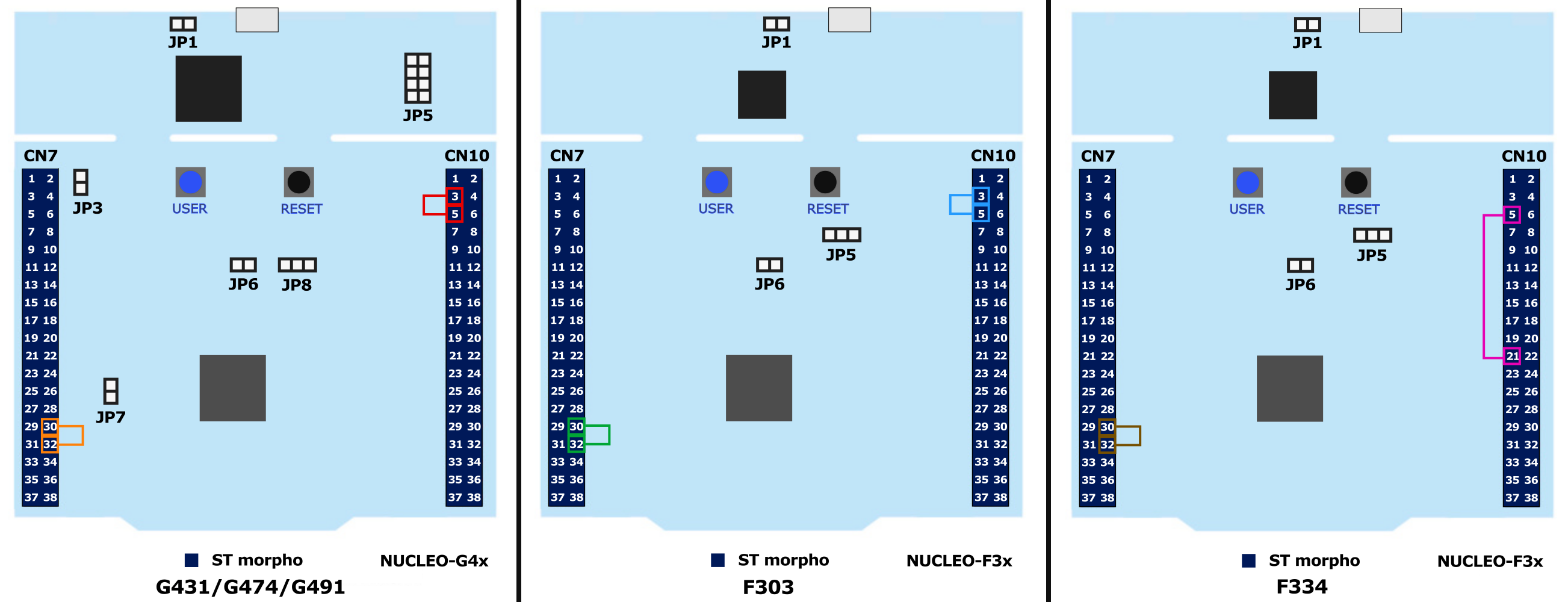
Fig. 4 Jumper wire connection depending on the hardware target
External Mode
Once the generated code is running on the STM32 target, the user can enter the External Mode to update Scopes in the PLECS application with real-time waveforms and change certain simulation parameters. The steps below outline how to connect to the target device, with additional debugging details provided in the “Start the External Mode” section of the user manual [6].
First, open the Coder > Coder Options… window, and from the System menu on the left-hand side, select the desired MCU.
Next, from the External Mode tab, select the appropriate Target device and click Connect. The default communication link of the model is set to a device type of
Serial over GDBand a device name of127.0.0.1.Next, click Connect and then Activate autotriggering to observe the test results in the subsystem Scope.
Real-time waveforms can now be viewed using the scopes found within the subsystem of the selected MCU. The generated sine waves in the Scope labeled “Sine” are shown in Fig. 5 and the captured PWM and ADC signals from the other scope are shown in Fig. 6. A trigger level for a desired Trigger channel can be set from the External Mode tab.
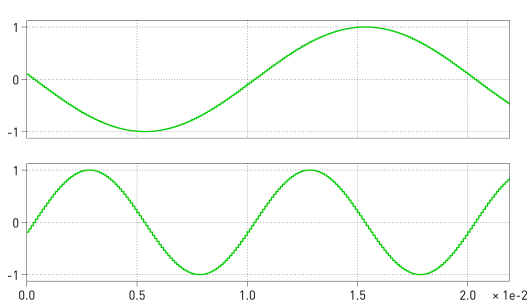
Fig. 5 Generated sine waveforms on Nucleo-G431RB
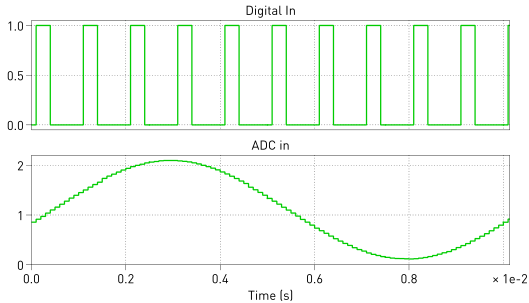
Fig. 6 Captured PWM and ADC signals on Nucleo-G431RB
Parameter Inlining
Certain values on the target device can be changed in real-time, if the component is added to the “Exceptions” list found in the Parameter Inlining tab of the Coder > Coder Options… window, prior to building the model. In this case, the values labeled “Gain” and “duty” can be changed when connected to the target device via the External Mode. Changes in the parameters will be reflected in the Scope traces once they take effect.
Conclusion
This model demonstrates how to program a STM32 MCU, connect to the External Mode, and also demonstrates Parameter Inlining feature using a simple model.
Bibliography
[1]
NUCLEO-G431RB, URL: https://www.st.com/en/evaluation-tools/nucleo-g431rb.
[2]
NUCLEO-G474RE, URL: https://www.st.com/en/evaluation-tools/nucleo-g474re.
[3]
NUCLEO-G431RB, URL: https://www.st.com/en/evaluation-tools/nucleo-g491re.
[4]
NUCLEO-F303RE, URL: https://www.st.com/en/evaluation-tools/nucleo-f303re.
[5]
NUCLEO-F334R8, URL: https://www.st.com/en/evaluation-tools/nucleo-f334r8.
[6]
STM32 Target Support Online Help: Quick Start.